
Before you start
- Your account has Trends turned on. Ask Support to turn it on.
- You're a Technician or a Responder.
- The user has a camera that sends room, bed and bathroom events.
View a user's night
- Open Users and select the user.
- Select Trends. The last night opens.
- Select Previous Night or Next Night to change the night.
The page has two parts:
- Night Summary: four values for the night, each with the change against the 7-day average.
- Night timeline: where the user was from 22:00 to 07:00, with falls marked.
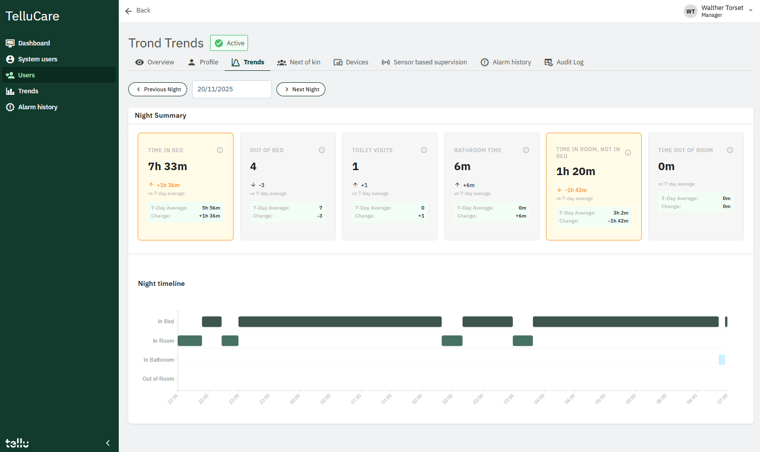
Trends tab on a user: Night Summary and Night timeline
Night Summary values
A value is highlighted in yellow when it differs clearly from the user's 7-day average.
| Value | What it is | Highlighted when |
|---|---|---|
| Time in Bed | Time in bed during the night | 90 minutes or more above or below the average |
| Out of bed | Number of times the user got out of bed | 4 or more, and 3 or more above the average |
| Toilet Visits | Number of bathroom visits | 3 or more, and 2 or more above the average |
| Bathroom Time | Time in the bathroom | 15 minutes or more, and 10 minutes or more above the average |
Night timeline
| State | Meaning |
|---|---|
| In Bed | The user is in bed |
| In Room | The user is in the room, not in bed |
| In Bathroom | The user is in the bathroom |
| Out of Room | The user has left the room |
| Fall event | Red marker at the time of a fall |
Good to know
- The night is always 22:00–07:00. It can't be changed.
- Deviations need data from at least 5 of the previous 7 nights. Until then, Trends shows how many more days of data it needs.
- Periods shorter than 2 minutes are left out.
- Only Time in Bed is highlighted when it goes down. The other values are highlighted only when they go up.