
For / Required Role: Technician
Attach the Novo
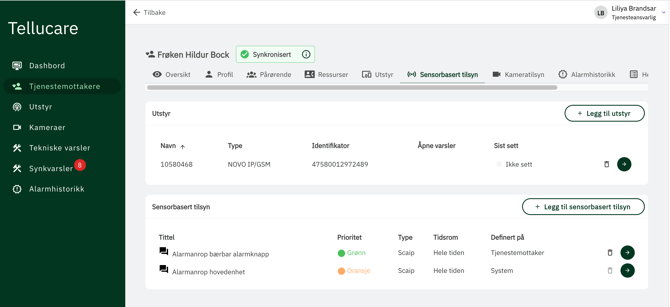
- Open the user's profile in Users and select Sensor based supervision.
- On the Equipment card, select Add equipment.
- Pick the Novo from the list and add it.
The list only shows Novo models (Novo, Novo 4G, Novo LTE, Novo Go, Novo Edge, Novo VoIP) and E-lock that aren't attached to another user. If it says "There is no equipment available", contact Support.
Add an alarm
- On the Sensor-based supervision card, select Add. The button only shows once a Novo is attached.
- In Select an event template, choose the alarm and select Next.
- Fill in the form and select Add.
| Field | What it does |
|---|---|
| Code | The Novo alarm code. Read-only. |
| Display text | The alarm name in the Alarm list. Fixed for standard alarms. |
| Icon | The icon in the Alarm list. |
| Priority | Green, Orange or Red. |
| Time period | All the time, or Period: Applies from and Applies until on chosen weekdays. |
To change or remove an alarm, select Edit or Delete on its row.
Manage the equipment
On the Equipment card, each Novo shows its name, type, identifier, open technical alarms and when it was last seen.
| Action | How |
|---|---|
| See the equipment profile | Arrow button on the row |
| Open the Novo's configuration page | Launch button (opens the supplier's portal) |
| Remove the Novo from the user | Delete button |
Good to know
- An alarm can only be added once per user.
- Technical alarms aren't in the template list. They always go to Technical alerts.
- If an alarm you need isn't in the list, contact Support.